
True full-page capture
Scrolls the whole page and stitches it into one seamless image. Sticky headers, cookie bars and chat bubbles are handled so they don’t repeat down the page.
Capture the visible area, a selection, an entire scrolling page — or just one scrolling panel. Then annotate, blur, beautify and export, all inside Chrome.
No bouncing between a screenshot tool, an image editor and an uploader.
Scrolls the whole page and stitches it into one seamless image. Sticky headers, cookie bars and chat bubbles are handled so they don’t repeat down the page.
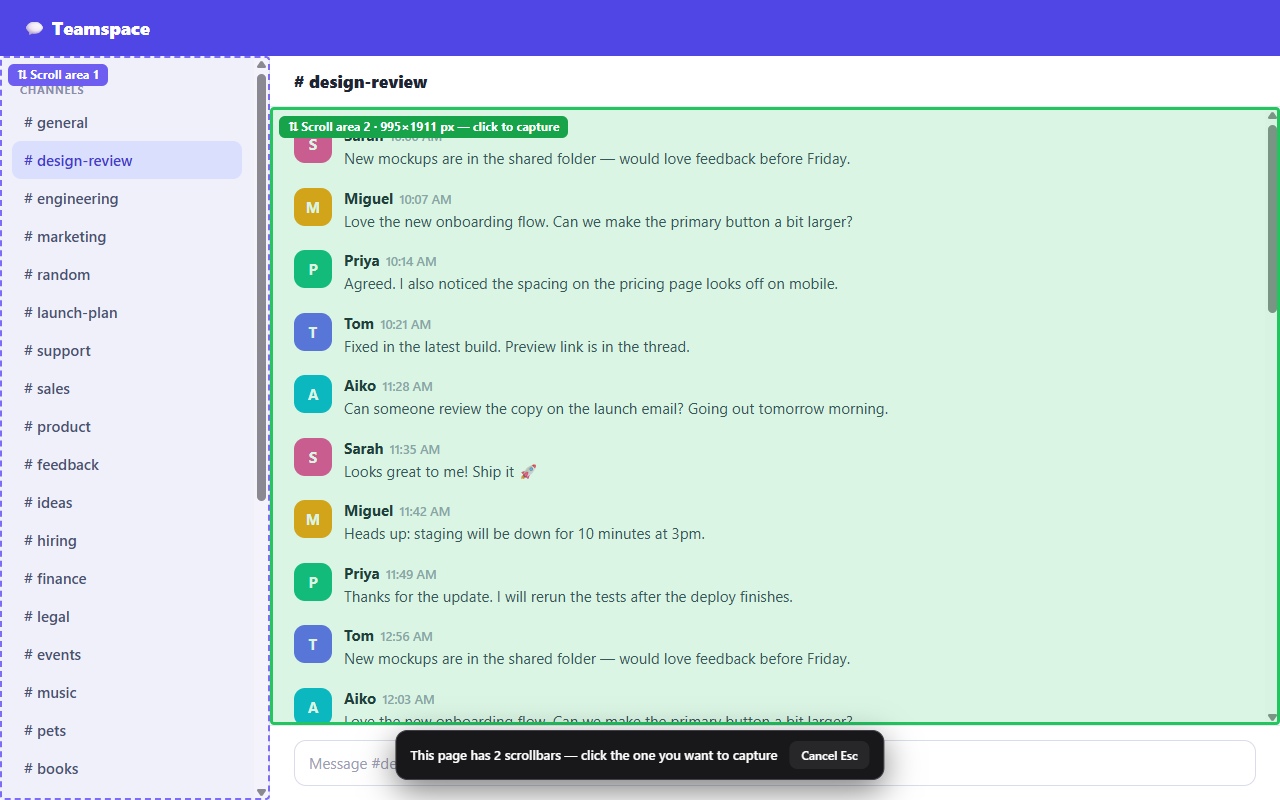
Page with a chat, a sidebar and a table that each scroll? SnapMaster highlights every scrollable area — click one and capture only that, top to bottom.
One shortcut for what you see, another to drag a box around any region. No clutter, no extra steps.
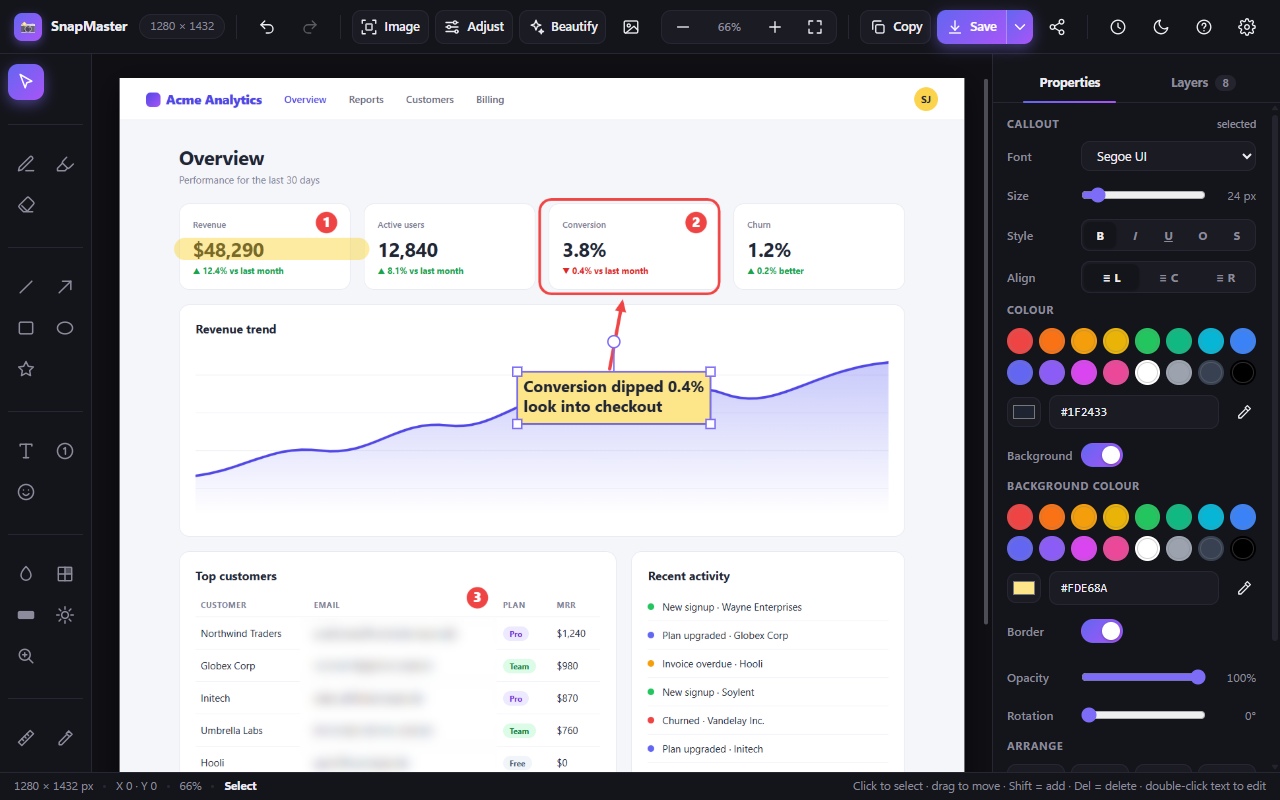
Pen, highlighter, arrows, shapes, text, numbered steps, stickers, spotlight, magnifier and a pixel ruler — every annotation stays editable.
Hide emails, names and numbers before you share. Draw a box and it’s gone — and you can still move or undo it.
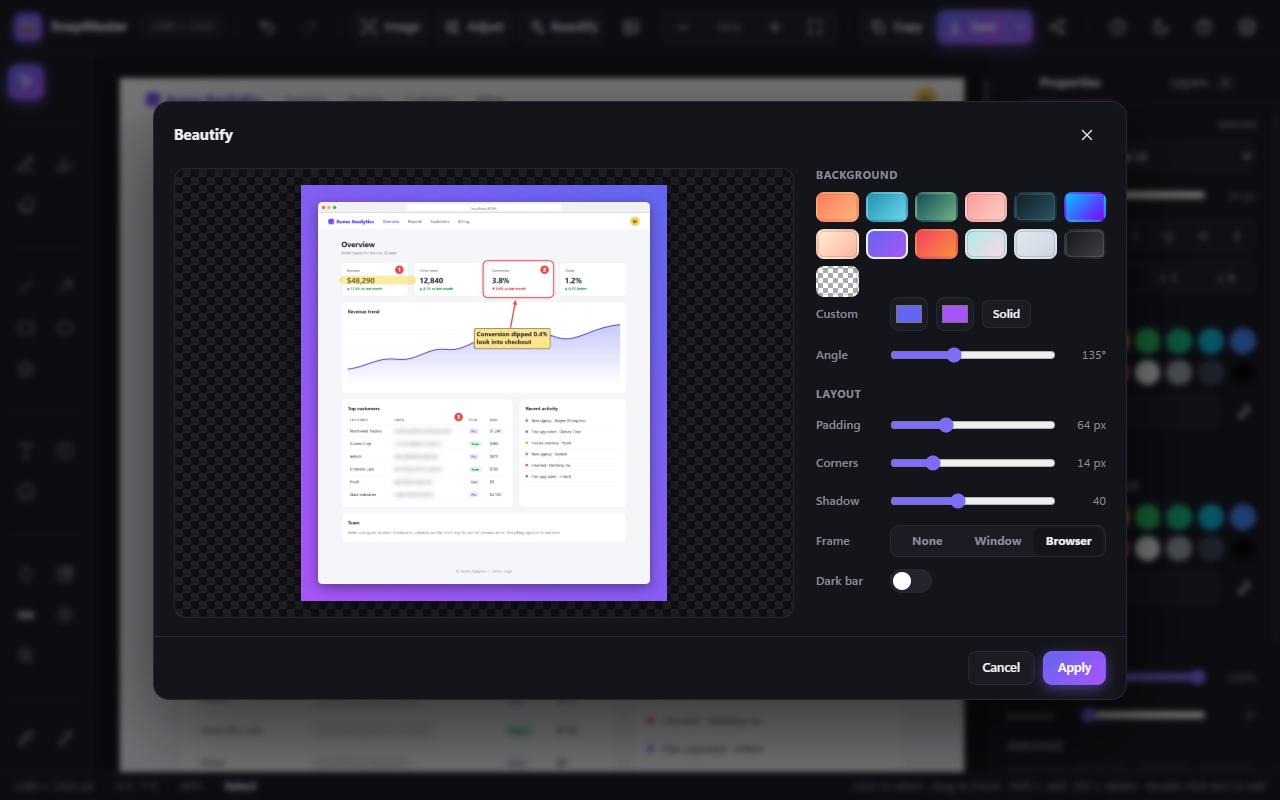
Gradient backgrounds, padding, rounded corners, soft shadows and a browser or window frame — ready for docs, tutorials and posts.
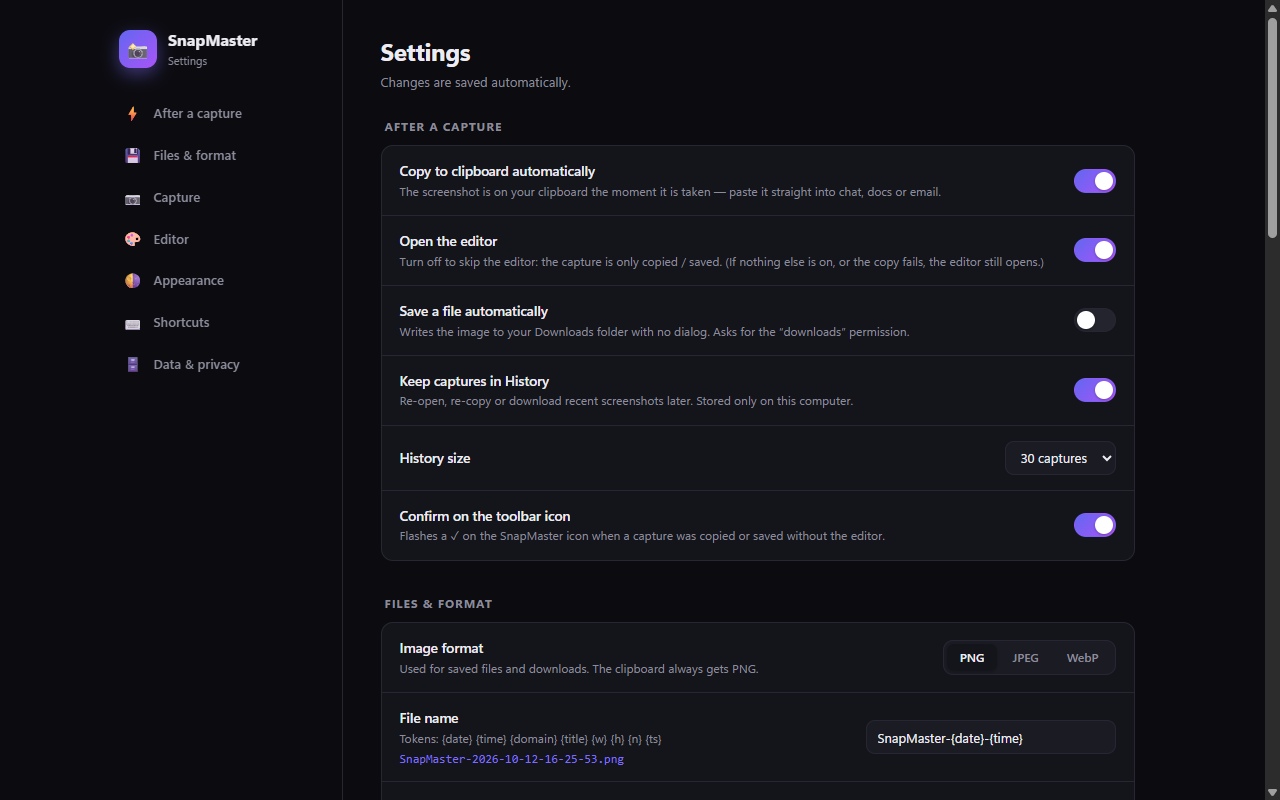
Turn it on and every capture is on your clipboard the moment it’s taken. Paste straight into chat, email or a doc.
Export in the format you need — including multi-page A4 PDFs for long pages — with your own file-name pattern.
Count down up to 10 seconds to open a menu first, then re-open, re-copy or download any recent capture from History.
Most tools scroll the page and hope for the best. When a page has a chat, a sidebar and a table that each scroll, SnapMaster highlights every scrollable area so you can point at the one you want.
Every annotation is a live layer — move, resize, rotate, restyle and reorder them, or undo as far back as you like. Blur, pixelate or redact sensitive details before you share.
Drop your screenshot onto a gradient with padding, rounded corners, a soft shadow and a browser or window frame. Perfect for docs, tutorials, release notes and social posts.
Decide what happens after every capture. Copy to the clipboard automatically, save a file with your own naming pattern, keep a history — or turn the editor off and just paste.
Click the toolbar icon or press a shortcut. Choose visible, area or full page.
Annotate, blur or beautify in the editor — or skip it and let it copy automatically.
Paste it anywhere, or download it as PNG, JPEG, WebP or PDF.
Your screenshots, history and settings never leave your computer. SnapMaster makes no network requests, has no analytics and loads no remote code. Uninstall it and everything is gone.
Install SnapMaster, open the page you want, and press Ctrl+Shift+F (Cmd+Shift+F on Mac) or click the toolbar icon and choose “Full page”. SnapMaster scrolls the page for you, stitches the pieces into one long image and opens it in the editor.
Yes. When a page has more than one scrollbar, SnapMaster highlights every scrollable area and lets you click the one you want. Only that area is captured, from the very top of its content to the bottom — even if it’s taller than your window.
Yes, completely free, with no account, no sign-up and no usage limits. If it saves you time you can optionally send a small “boost” — it is a tip and unlocks nothing.
No. Screenshots, history and settings stay in your browser on your computer. The extension makes no network requests, has no analytics and loads no remote code. Uninstalling removes everything.
Use the Blur, Pixelate or Redact tools in the editor: draw a box over the text and it’s hidden. Because the tools are non-destructive layers, you can move, resize or undo them until you export.
Copy to the clipboard as PNG, or download as PNG, JPEG or WebP. You can also export a PDF — either as A4 pages (great for long captures) or as a single page. File names follow a pattern you control.
Ctrl+Shift+S captures the visible area, Ctrl+Shift+D lets you select an area, and Ctrl+Shift+F captures the full page (Cmd on Mac). You can change them at chrome://extensions/shortcuts.
Chrome requires that permission to capture a tab and to scroll and stitch a page on any site you choose. SnapMaster only acts when you press a button or shortcut, and it only turns the page into the image you asked for. The privacy policy lists every permission and its purpose.
SnapMaster is built for Google Chrome. Chromium-based browsers that can install Chrome Web Store extensions, such as Edge and Brave, generally run it too, though Chrome is the one it is tested on.
It’s free, and it will stay free. If it saves you time, a small boost helps me keep improving it.